Introduction
Android applications are distributed in the form of Android Application Package (.apk) files, or more recently, in the form of Android App Bundle (.aab) files. The package format remains APK, but the publishing format has changed to .aab to deliver optimized APK files to different devices.
Let’s start with APK files.
APK - Android Application Package
APK files are ZIP archive files containing the resources, bytecode, compiled library files, manifest file, etc., necessary to run Android applications. An APK may have a structure similar to this:
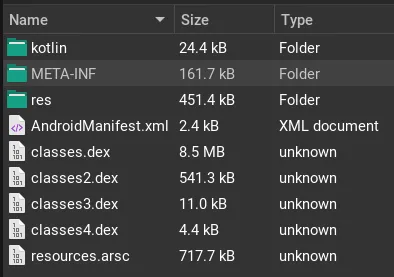
Important files for us are .dex files (classes[i].dex) and the AndroidManifest.xml file.
For demonstration purposes, I’m using an open-source application called Amaze File Manager.
Android Manifest File
All Android applications contain an AndroidManifest.xml file with all necessary details to run the application. The file defines the components of the application and the entry points used to launch these components. For reverse engineers, it is crucial to know all possible entry points to ensure awareness of all potential execution paths.
The manifest file we’re using for reference is: AmazeFileManager’s manifest file.
There are several useful details we need to know about the file’s content:
Package Name
In this case, com.amaze.filemanager is a unique application name; we cannot install two different apps with the same package name:

There is no main or single entry point for the application, but rather different components with callback methods. Usually, there are several ways to interact with the app.
Activities
We can think of activities as individual screens with a user interface. This can be the main window, preferences window, editor window, about page, etc. To make applications work, there needs to be a way to communicate between components, and Intents are used for that.
Intent filters are used with activities to specify what kind of requests the activity component can respond to.
In the code snippet below, we use the action ‘send’, which is used to send data from one activity to another, and it specifies the type of the data with the ‘data’ element. This means that the .ExampleActivity class is able to send plain text data.
<activity android:name=".ExampleActivity" android:icon="@drawable/app_icon"> <intent-filter> <action android:name="android.intent.action.SEND" /> <category android:name="android.intent.category.DEFAULT" /> <data android:mimeType="text/plain" /> </intent-filter></activity>In our reference app, we have the TextEditorActivity activity with code located at com.amaze.filemanager.p005ui.activities.texteditor.TextEditorActivity. The view action from the intent filter shows that the component is used to view data, and we can also see the file types the activity can handle.
<activity android:theme="@style/appCompatBlack" android:label="@string/textreader" android:name="com.amaze.filemanager.p005ui.activities.texteditor.TextEditorActivity" android:configChanges="uiMode"> <intent-filter android:label="Amaze Text Editor"> <action android:name="android.intent.action.VIEW"/> <category android:name="android.intent.category.DEFAULT"/> <data android:mimeType="text/*"/> <data android:mimeType="application/javascript"/> <data android:mimeType="application/json"/> <data android:mimeType="application/xml"/> </intent-filter></activity>The following Intent can be used to call the activity class:
Intent newIntent = new Intent(Intent.ACTION_VIEW, pdfpage);// Start the activitystartActivity(newIntent);In this case, we have category.DEFAULT, and there is no need to explicitly specify the package name to handle the request; the above-mentioned activity will be used.
One important action is ACTION_MAIN with category LAUNCHER, which is used to launch the main activity in an application, for example, when we click on the app icon:
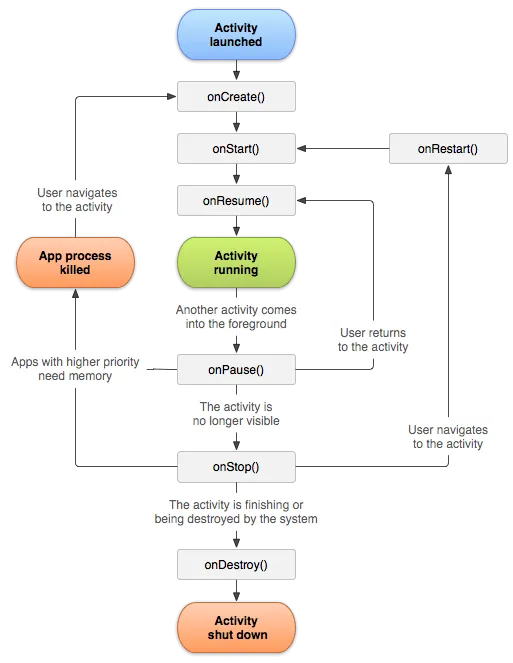
<intent-filter android:label="@string/appbar_name"> <action android:name="android.intent.action.MAIN"/> <category android:name="android.intent.category.LAUNCHER"/></intent-filter>The following diagram shows different states of an activity and the callbacks a developer can implement. The onCreate callback is usually used to initialize the component logic.
Services
A Service is declared in the manifest file and runs in the background without a user interface. The following snippet is from the reference application:
<service android:label="Copying" android:name="com.amaze.filemanager.asynchronous.services.CopyService"/><service android:name="com.amaze.filemanager.asynchronous.services.ftp.FtpService" android:permission="com.amaze.filemanager.permission.CONTROL_FTP_SERVER" android:enabled="true" android:exported="true"/>The first service, Copying, can be called similarly to activities, but using startService instead of startActivity:
Intent intent = new Intent(this.context.get(), CopyService.class);intent.putParcelableArrayListExtra("FILE_PATHS", sourceFiles);intent.putExtra("COPY_DIRECTORY", target);intent.putExtra("MODE", openmode.ordinal());intent.putExtra("move", this.move);intent.putExtra("is_root", this.rootMode);...context.startService(intent);android:exported="true" is used to specify if the service component can be used by another application.
Broadcast Receivers
A broadcast receiver is one of the application components and responds to different types of events, called broadcasts. For example, an application can register for the ACTION_BOOT_COMPLETED (android.intent.action.BOOT_COMPLETED) broadcast and execute code after the device finishes booting.
There are two ways to register a broadcast receiver: statically in the manifest or dynamically in an activity component.
Register a broadcast receiver via the manifest file:
<receiver android:name=".BootReceiver" android:exported="true"> <intent-filter> <action android:name="android.intent.action.BOOT_COMPLETED"/> </intent-filter></receiver>Alternatively, we can register it dynamically from an activity:
context.registerReceiver(receiver, new IntentFilter(Intent.ACTION_BATTERY_CHANGED));The onReceive callback is called when a specified event occurs on the device.
@Overridepublic void onReceive(Context context, Intent intent) { super.onReceive(context, intent); Log.d(TAG, "onReceive()" + intent.getAction());}Content Providers
Content Providers create an interface to access shared data. For example, the Contacts provider is a good example of such functionality. Much like other components, a custom content provider can be declared in the manifest file. The component is not essential for us, but if you wish to learn more about it, you can read the Content provider basics page.
It’s important to understand the above-mentioned components, as they declare different entry points for the application.
Application Element
Another way to have an early entry point is to extend the Application class and implement the onCreate method, which will execute earlier than the above-mentioned components.
<manifest ... <application android:name="com.package.example.myapp"> <activity> <!-- ... --> </activity> </application></manifest>public class MyApp extends Application { public MyApp() { // Constructor is called when the app is created }
@Override public void onCreate() { super.onCreate(); // onCreate is called when the app is created // ... }}